Scan the Tube, the Machine Already Knows: How Two-way Analyzer Interfacing Works in Labgen
With two-way interfacing, the analyzer asks Labgen what to run on each tube and Labgen answers in about a second. Here is what happens between the scan and the report, what your lab gains, and how to switch it on.
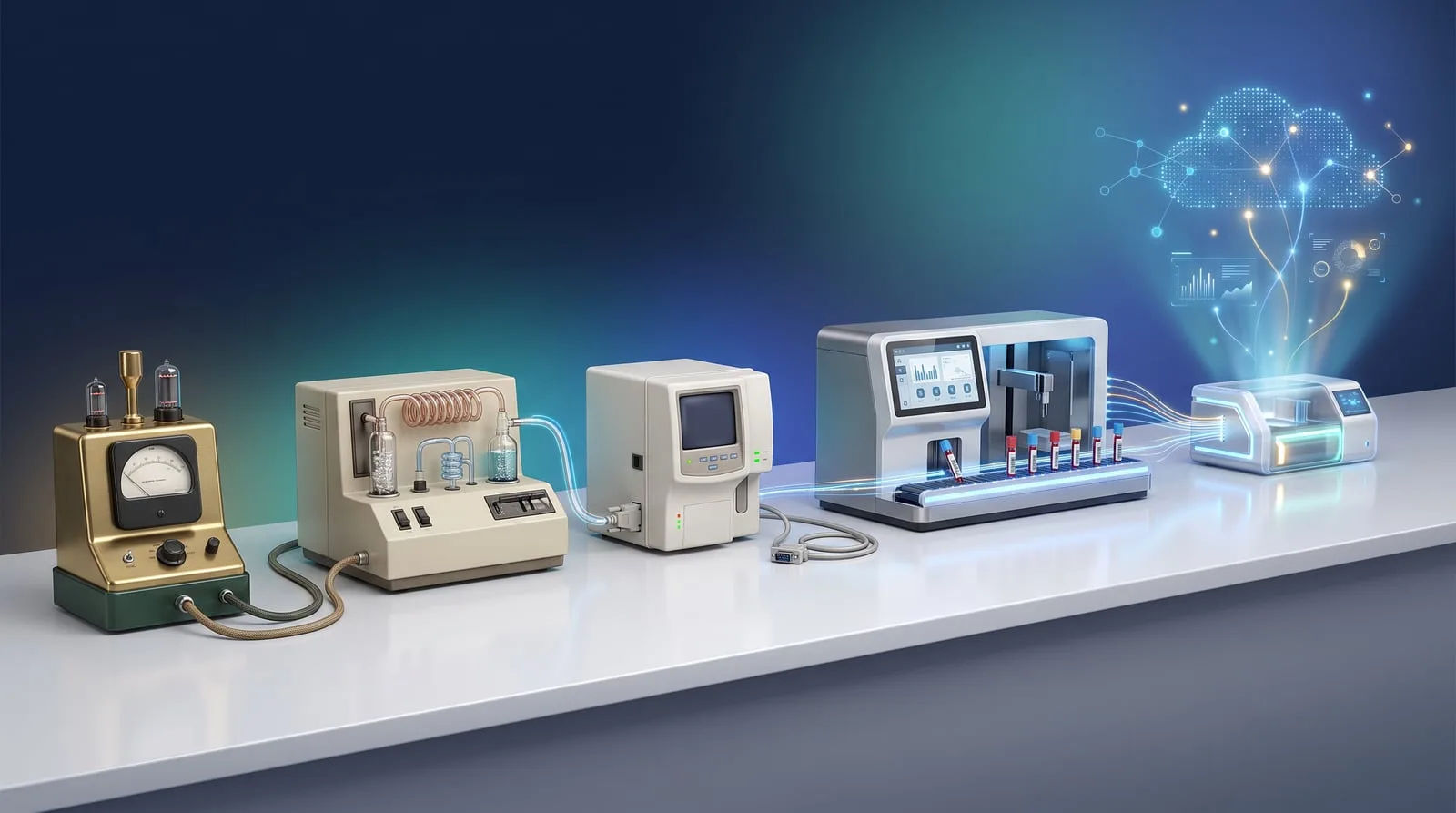
In most labs the analyzer and the lab software talk in one direction only. The machine runs a sample and sends the results out. Everything before that, telling the machine whose sample it is and which tests to run, is done by a person at the bench, typing on the analyzer's screen.
That typing is where many mix-ups begin: a sample ID with one digit wrong, a test ticked that nobody ordered, a test missed that was. Two-way interfacing (also called bidirectional interfacing) removes it. The analyzer asks Labgen what to run, Labgen answers, and nobody types anything on the machine.
This article explains, step by step, what happens when two-way is on, what your lab gains from it, and how to switch it on.
One-way and two-way, side by side
| One-way (results only) | Two-way (the analyzer asks Labgen) | |
|---|---|---|
| At the bench | Staff type the sample ID and pick the tests on the analyzer | Staff only load and scan the barcoded tube |
| What runs | Often the analyzer's full default panel | Only the tests ordered for that tube |
| Results | Come back to Labgen; a mistyped ID has to be matched by hand | Come back under the tube's own barcode and land on the right report |
What happens when a tube is scanned
Two-way works with the same barcode labels your reception already prints. Here is the journey of one tube.
- Reception registers the patient. The tests are booked in Labgen and the tube labels are printed, exactly as today.
- The bench loads the tube. The analyzer reads the barcode, for example LAB-0042-SERUM.
- The analyzer asks. Before it runs anything, the analyzer sends a short question: "What do I run on this tube?" This is called a host query.
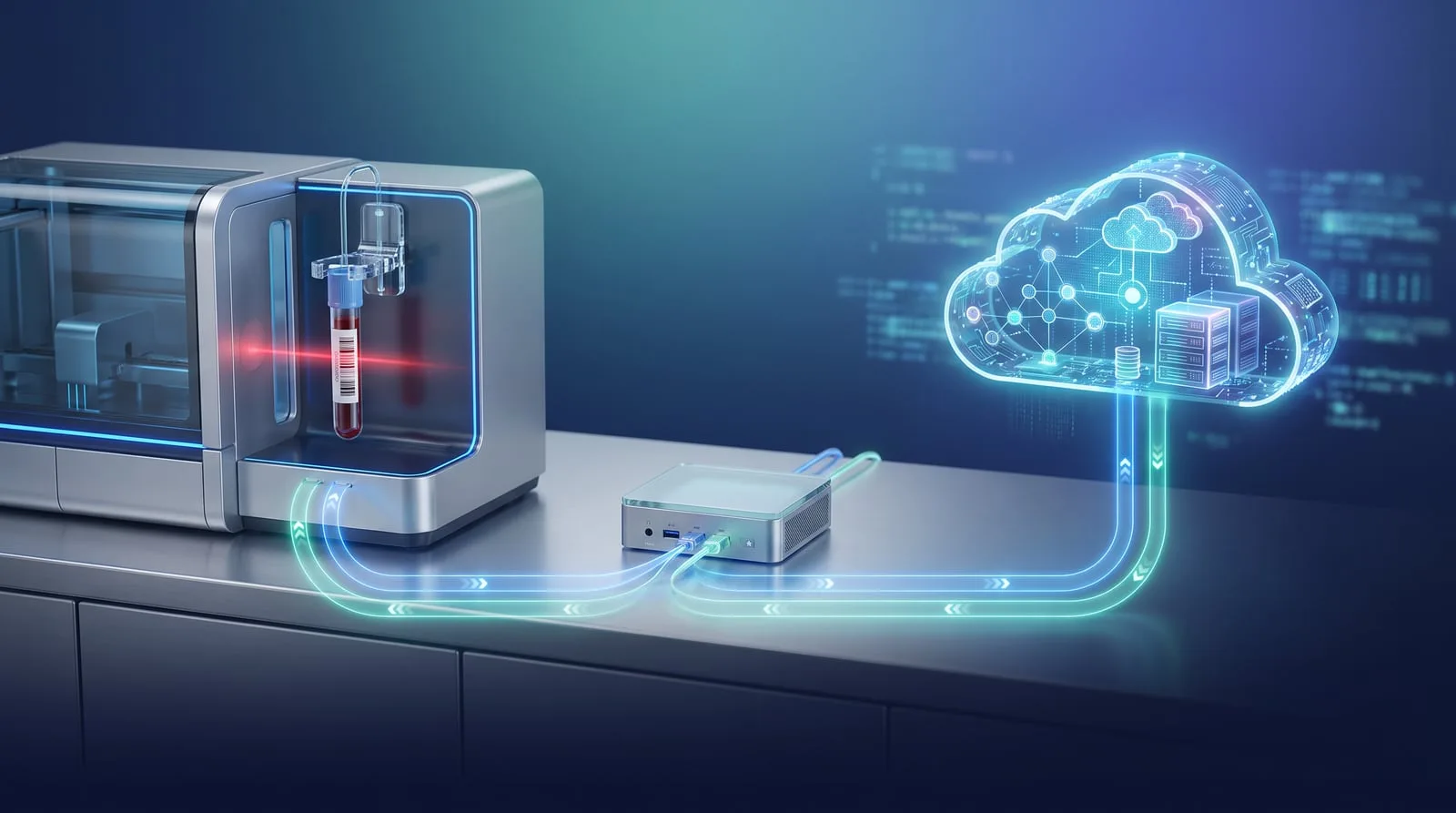
- Labgen answers, in about a second. The question travels through the Labgen Bridge on the PC next to the analyzer, up to Labgen in the cloud. Labgen finds the visit behind that barcode and replies with the patient, the tests to run and whether the sample is urgent.
- The analyzer runs only what was ordered. Then it sends the results back the usual way, under the same barcode.
- Results land on the right report. Labgen matches them to the patient's tests, converts them to your lab's units and puts them up for review and authorization.
No new hardware is needed. The question and the answer use the same Labgen Bridge that already carries your results.
What the analyzer is told
A real exchange looks like this:
The analyzer asks: What do I run on tube LAB-0042-SERUM?
Labgen answers: Patient UHID-0187, Asha Rao, 34 years, female. Tests: TC, TG, HDL, GLU. Priority: routine.
The answer carries only what the analyzer needs to run the sample and flag it correctly: the patient's ID, name, age and sex, the test codes and the priority. Bills, phone numbers and addresses never go to the machine.
Labgen also sends only the tests meant for that analyzer. If the same visit has a CBC and a lipid profile, the chemistry analyzer is asked to run the lipid profile and nothing else. The CBC waits for the hematology analyzer.
What your lab gains
- No typing on the analyzer. The most common bench mistake, a sample ID or test keyed in wrongly, simply cannot happen.
- Only ordered tests run. A chemistry analyzer does not spend reagent on tests nobody asked for.
- Results find their report. Because results come back under the tube's own barcode, far fewer runs wait in Unmatched Results.
- Correct flags on the machine. The analyzer knows the patient's age and sex, so its own high and low flags use the right ranges.
- Urgent samples first. A visit billed as urgent reaches the analyzer marked STAT.
- A clear record. Labgen logs every question an analyzer asked and what it was told, which helps with audits and NABL.
What if something goes wrong?
Two-way is designed so that the analyzer is never left waiting and no sample is ever stuck.
| Situation | What the analyzer does |
|---|---|
| The analyzer does not support host query, or it is switched off on the machine | Nothing changes. It keeps working one-way, as it does today. |
| The tube's barcode is not registered in Labgen | Labgen answers "no order" and the analyzer runs its default panel. The result waits in Unmatched Results. |
| A test has no order codes for this machine | That test is not sent to this machine. |
| Two-way is switched off in Labgen | The analyzer is told "no order" and runs its default panel. |
| The internet or Labgen cannot be reached | Within about ten seconds the analyzer is told "no order" and runs its default panel. Results are kept on the PC and sent when the connection returns. |
Your lab stays in control
Labgen only answers questions the analyzer asks. It never pushes work onto a machine on its own. One switch turns two-way off for the whole lab at once, with no visit to the lab PC. And every result still goes through your normal review and authorization before a report is released.
Turning it on: four steps
An administrator does steps 1, 2 and 4 in Labgen under Lab Config → Analyzer Mapping. Step 3 is done on the analyzer, usually with your service engineer.
- Check the Two-way switch. It is on for every lab unless someone turned it off.
- Add order codes. For each test, pick the machine and enter that machine's own test codes, for example Lipid Profile → TC, TG, HDL. Codes your analyzer has already sent are shown, ready to click.
- Switch on host query on the analyzer. In its LIS or host settings, look for host query, LIS query or bidirectional. The name varies by model.
- Try one tube. Scan a registered tube, then open Last questions from your analyzers on the same screen. It shows the tube and the codes that were sent.
If a test is not picked up, the usual cause is an order code that does not match the analyzer's own code exactly. Compare the two lists, and our support team can help you set up the first analyzer.
Which analyzers can do this?
Any analyzer that supports host query over HL7 or ASTM. Most modern hematology, biochemistry and immunoassay analyzers have it. The Labgen Bridge needs to be on version 2.12.0 or later, and it updates itself. Each new analyzer model is checked with one test tube before daily use.
The short version
With two-way interfacing, the barcode on the tube does all the talking. The analyzer scans it, asks Labgen what to run, runs exactly that and sends the results back to the right patient. Your staff stop typing on the machine, reagent is not wasted, urgent samples are marked as urgent, and if anything is unavailable the analyzer simply carries on as it does today.